PS4 Controller Not Connecting With USB: Troubleshooting Steps
8 September 2026 | 189
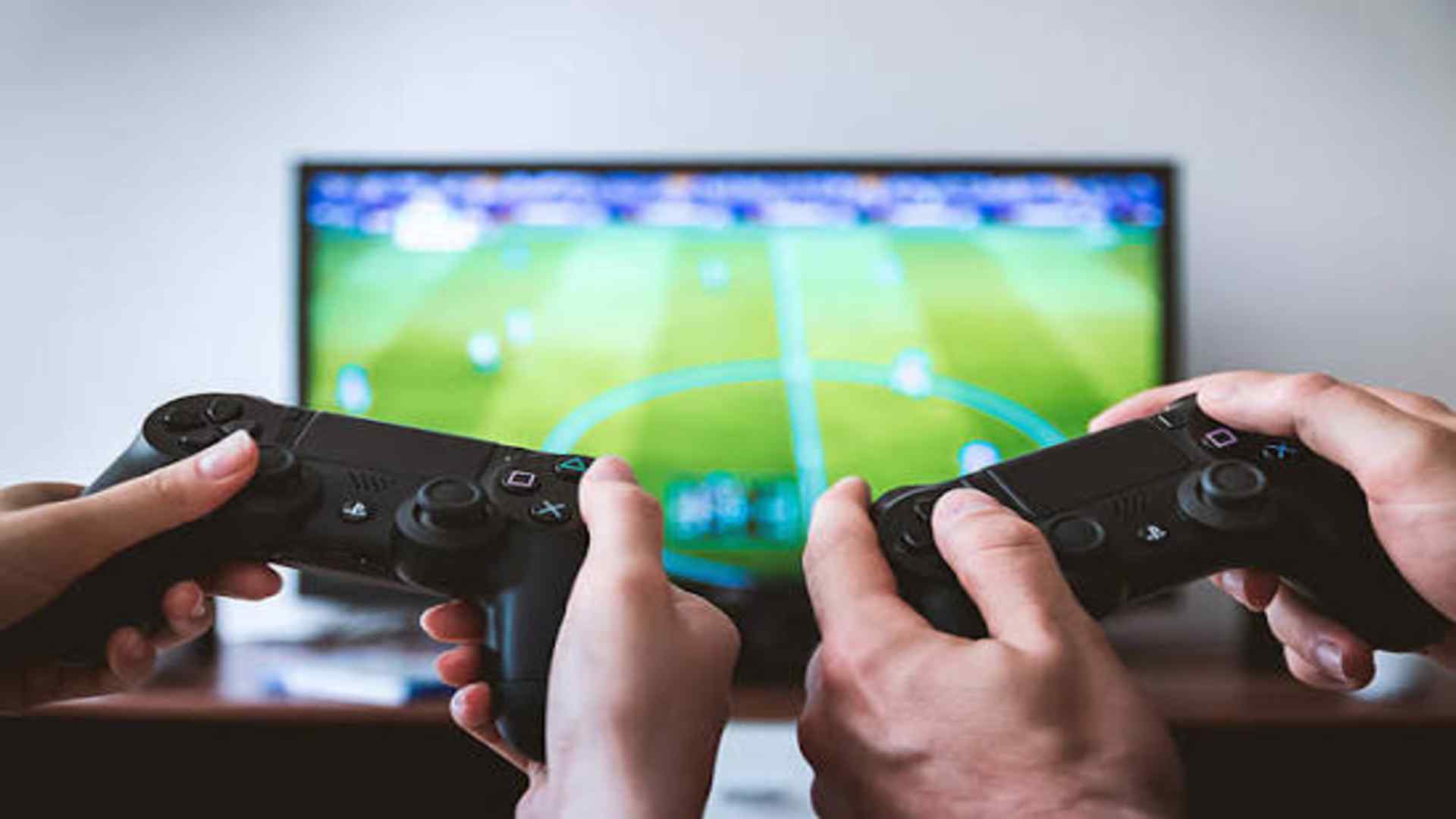
Connecting a DualShock 4 controller to a PlayStation 4 console using a USB cable is usually a seamless experience. However, encountering connection failures can quickly derail your gaming session and leave you searching for quick remedies. Understanding the root causes of USB connectivity issues can help you resolve the problem efficiently.
Inspecting Cable and Port Integrity
The most common culprit behind a failed wired connection is a faulty or charge-only Micro-USB cable. Many third-party USB cables are designed solely for power delivery and lack the internal data wires required to pair your gamepad. Swapping your current cord for a verified data-transfer cable often restores immediate communication with the console.
In addition to checking the cable, inspect the physical ports on both the controller and the PS4 unit. Debris, lint, or bent pins inside the Micro-USB port can prevent proper contact and interrupt data transfer. Cleaning the ports gently with compressed air can resolve hidden physical obstructions.
Performing a Hard Reset on the Controller
Internal software glitches within the DualShock 4 controller can sometimes prevent it from establishing a stable USB link. Resetting the gamepad clears its temporary memory and forces it to re-establish connections from scratch. This basic fix resolves a surprisingly wide array of synchronization bugs without risking saved data.
To execute a hard reset, locate the small pinhole button on the back of the controller near the L2 shoulder button. Insert a straightened paperclip into the hole and press down firmly for about five seconds. After releasing the button, reconnect the controller to the console using a reliable USB cable and press the PS button.
Reconnecting via Safe Mode Settings
If the controller remains unresponsive in normal operating mode, booting your PlayStation 4 into Safe Mode offers a useful diagnostic path. Safe Mode bypasses standard system software routines to check basic hardware communications directly. This step helps determine whether the issue lies in system software or physical hardware components.
Turn off the console completely, then press and hold the power button until you hear a second beep after seven seconds. Connect the controller via USB and press the PS button when prompted on the screen. If the gamepad responds in Safe Mode, restarting the console normally often resolves the initial synchronization block.
Managing Bluetooth and Device Settings
Sometimes cached Bluetooth pairing data interferes with new USB connection attempts on the console. Clearing out old controller profiles forces the system to recognize the connected device as a brand-new input source. You can manage these preferences using a secondary working controller or the PlayStation app on your smartphone.
Navigate to the Settings menu on your console dashboard, select Devices, and then open the Bluetooth Devices screen. Locate the problematic controller, press the Options button to forget the device, and turn off the console completely. Reattach the gamepad using your USB cable and power on the PS4 to complete a fresh pairing procedure.